PDF Accessibility
This page lists best practices for creating a PDF that anyone can access.
After converting a file to PDF, run Acrobat Pro’s accessibility checker. It flags failures and requires manual checks to ensure the file is accessible. This step is required even if the source file has already passed accessibility checks in its original software.
The checker flags the tag order with a question mark (?), requiring a manual check in Acrobat Pro.
Start remediation with the final version of your file to save time. If the checker flags issues that can’t be fixed without changing the page content (text and images), address them outside of Acrobat: edit the original file, re-export it as a PDF, and re-run the checker.
Walk the Tags Tree (Manual Check in Acrobat)
Open the tags tree and use the arrow keys to move through the tags. Each item is highlighted on screen as you go, so you can confirm the reading order.
If the document does not contain tags or the existing tags are completely wrong, using Acrobat’s Autotag feature can create a better starting place. However, you will still need to walk the tags tree and make corrections, as Autotag is not completely accurate.
Drag and drop tags to reorder them or relabel a tag to better describe its content.
Headings
Heading levels show content hierarchy. Heading levels start at 1 (highest) and decrease in importance (2, 3, etc.). Use Heading 1 for the title only.
Images & Alternative Text
Alternative text (or alt text) is a short image description read aloud by screen readers for visually impaired users.
Limit alt text to 125 characters or fewer. If you have a long description, add the information as a caption below the image on the page, prefaced with "Image description."
Mark purely decorative images as artifacts using Acrobat's tools.
Meaningful Links
Use meaningful, specific text that tells users where a link goes or what it does — even out of context. Do not use raw URLs, which are unformatted web addresses such as https://www.etsu.edu/accessibility. Screen readers read raw URLs out loud, character by character.
Avoid these generic terms:
- Click Here
- Link
- Info
- Video
Instead, describe the destination or action:
Instead of “https://www.etsu.edu/accessibility," use "Visit the ETSU Accessibility Website."
Instead of “Download the PDF," use "Download the 2024 Annual Report (PDF)."
Instead of “Watch this video," use "Watch the onboarding tutorial."
Color Contrast (Manual Check in Acrobat)
W3C’s Web Content Accessibility Guidelines (WCAG) Level AA sets minimum contrast (luminance difference) between text or icons and their background:
Minimum Thresholds (Level AA)
- Normal text: contrast ratio of at least 4.5:1.
- Large text and UI elements: a ratio of at least 3.0:1. (large text is 18 pt or 14 pt bold).
Check your colors with the WebAIM Color Contrast Checker.
File Properties & Metadata
- Set a clear, descriptive title for the document by going to File > Properties > Description rather than relying on the raw file name.
- Set the primary document language under the Advanced tab in Document Properties.
- Ensure security settings do not block screen readers or assistive technology.
Form Fields
- Use Acrobat's Prepare a Form tool to auto-detect fields or add them manually.
- Form Fields must have descriptive labels and tooltips.
- Watch the training video How to Make PDF Forms Accessible for more information.
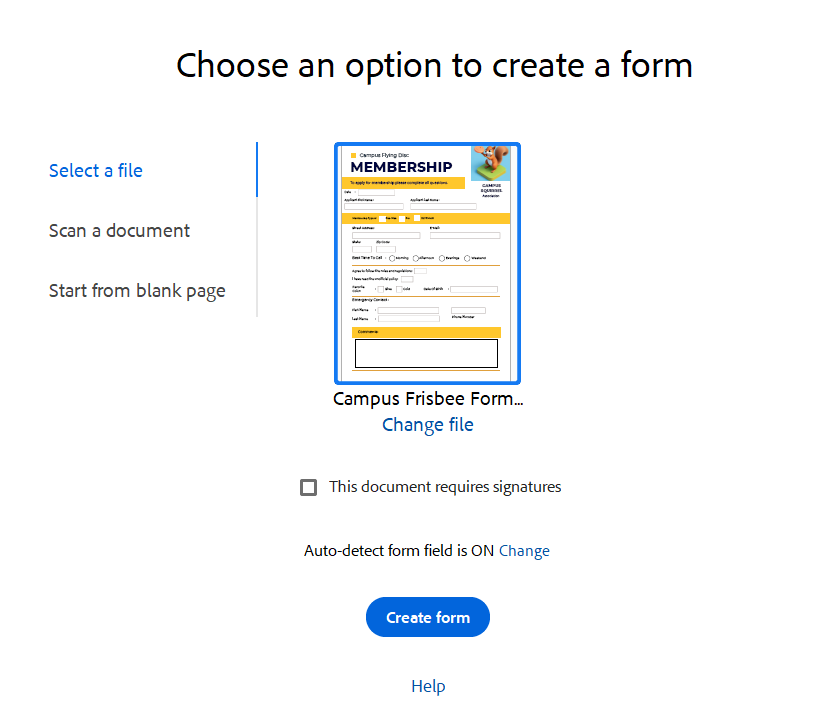
This screenshot shows Acrobat Pro's Prepare a Form tool.
Navigation
Bookmarks aid navigation, but for documents over 10 pages, a linked table of contents better serves assistive technology users.
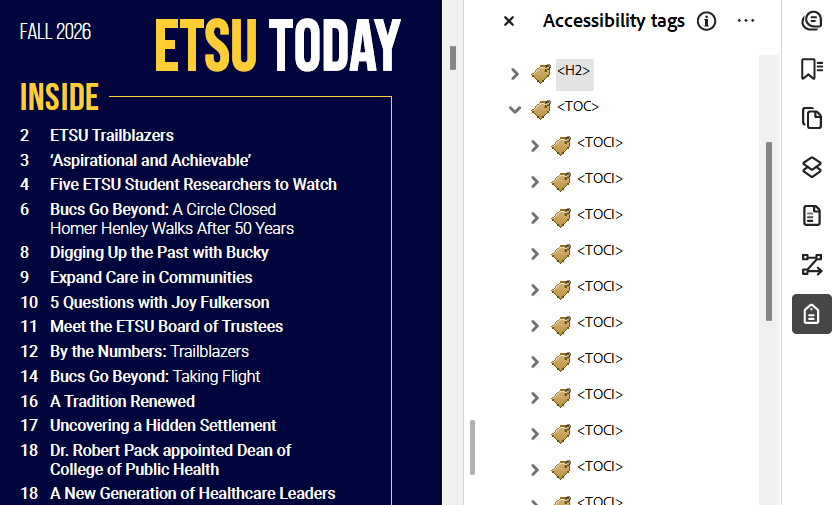
This screenshot shows Acrobat Pro's tags tree with the ETSU Today table of contents and the tags tree. The Table of Contents (TOC) Tag and Table of Contents Item (TOCI) for each linked entry are in the tags structure.
Resources
Use our training resources to help you create accessible content.